
To create a product ad from one photo, use the photo as a reference, generate a scene with room for your message, then add your headline as a separate text object. Check the product details against the original before exporting the finished design.
The useful part of this workflow is what happens between generation and export. You need to choose a composition, keep the product recognizable, and make the message readable. In CubbieAI, the reference image, visual directions, and layout can stay together on one canvas while you make those decisions.
This guide uses CubbieAI’s existing blue-chair demonstration artwork to illustrate the process. The images are visual examples, not a newly recorded test of the prompts below. Use the suggested prompts as starting points and check your own outputs.
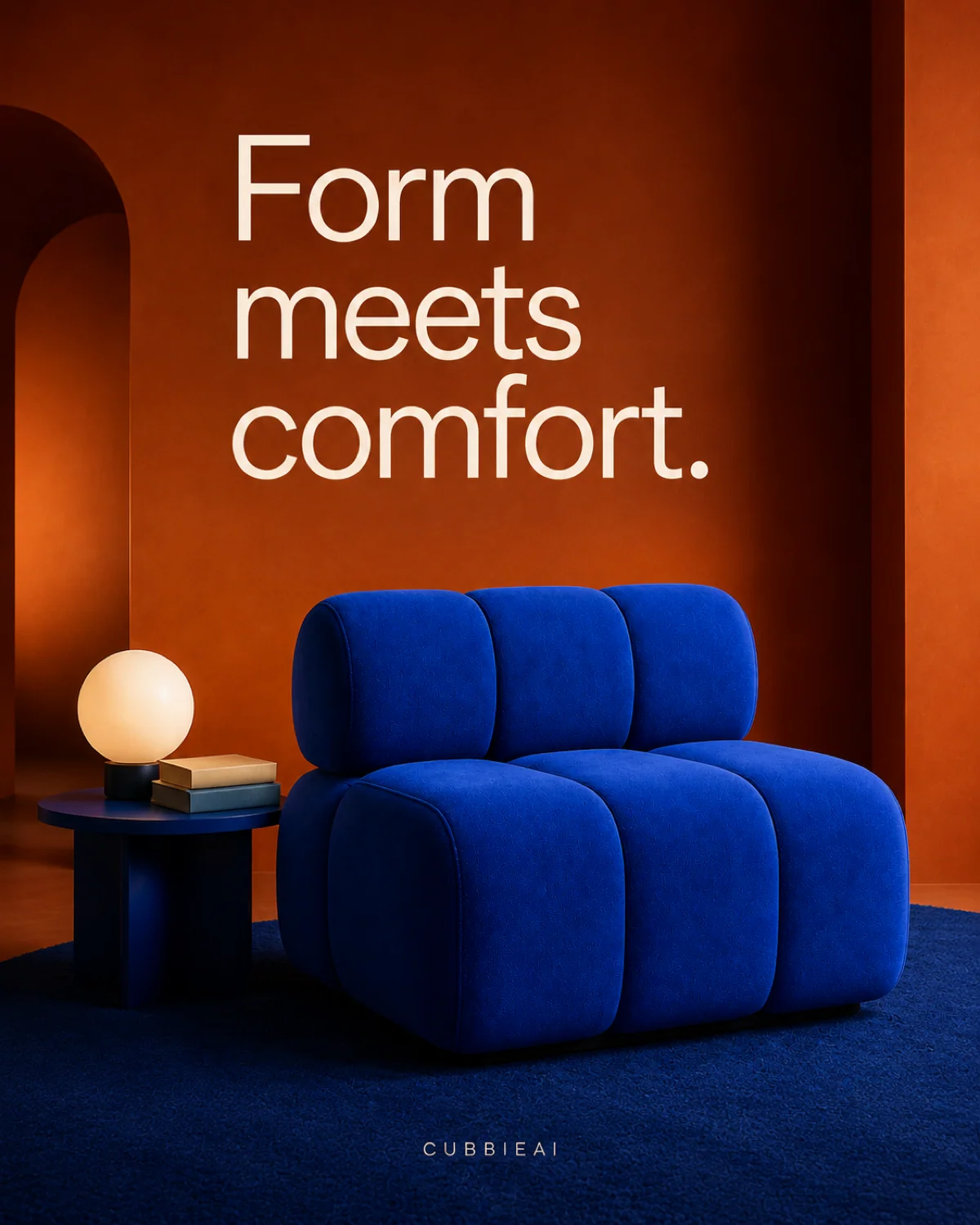
A finished layout example. This is a flattened image; its headline is not an editable text layer. In your own project, add the headline separately so you can revise it.
What you need before you start
Prepare a clear photo that shows the product’s shape, color, and important details. For packaging, make sure the label is legible. For furniture, include the silhouette, legs or base, and upholstery details you want to preserve.
You will also need:
- One use for the ad: a product launch, a collection announcement, or a specific offer.
- One short message: the main thing you want someone to remember.
- A destination and shape: choose the placement you are designing for and confirm its current dimensions.
- A CubbieAI account: check the generation quote shown in Studio before submitting a request.
Use photos and brand assets you have permission to work with. Keep an unchanged copy of your product photo in the project for comparison.
1. Bring the product photo into your canvas
Open Studio and use Add reference image to upload your photo. Keep the product image visible on the canvas, and select the image you want the Agent to use when you describe the task.
For the first attempt, keep the reference simple. A single clear product photo gives you a useful baseline before you introduce additional style references.
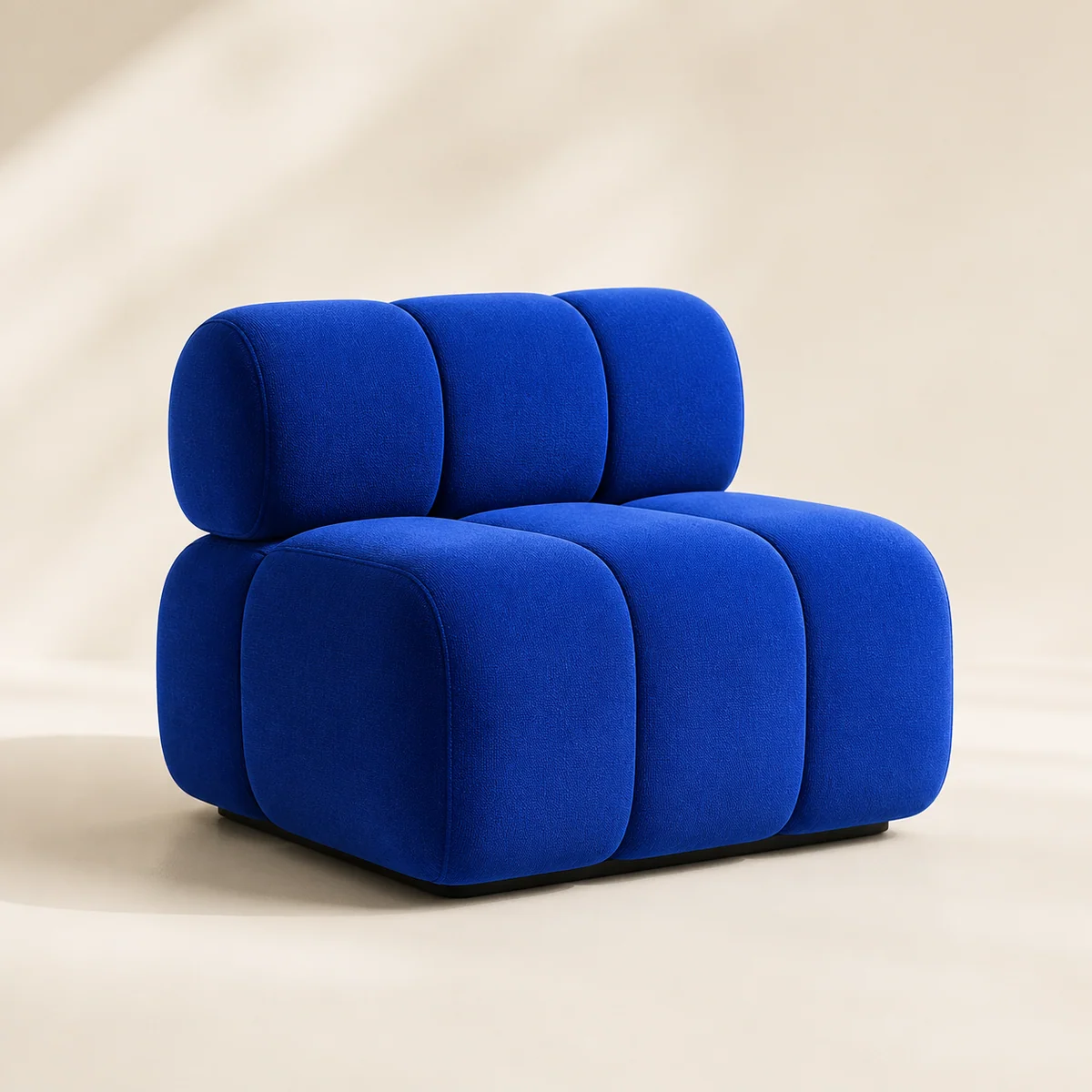
The reference makes the chair’s color, proportions, and three-part backrest easy to inspect.
Before generating, identify two or three details you need to check later. In this example, those details are the blue upholstery, the padded sections, and the chair’s low silhouette. For a bottle, they might be the cap, label, and shoulder shape.
2. Describe the scene and leave room for your message
Choose the output aspect ratio in Studio before submitting. Decide where the product should sit and where the headline will go. If the product fills the entire frame, you may have to cover it with text or rebuild the composition later.
A useful prompt describes four things: the reference product, its surroundings, the lighting, and the space needed for the ad copy.
For a furniture ad, try this starting prompt:
Use the selected blue chair as the product reference for a furniture ad.
Preserve its cobalt-blue upholstery, padded sections, proportions, and low base.
Place the chair in the lower half of a warm terracotta interior.
Use soft directional light and a believable contact shadow beneath the chair.
Keep the upper third visually quiet for a headline that I will add separately.
Do not add text, logos, prices, watermarks, or extra chairs.
Replace the product and setting with your own. A skincare jar might sit on a pale stone surface; a coffee bag might sit beside a cup on a kitchen counter. Choose surroundings that explain the product’s use without competing for attention.
The preservation instructions express what you want. They do not guarantee that the generated product will match the original exactly.
If the Agent asks a follow-up question, answer it before continuing. Review the visible generation quote and submit when the references, ratio, and request are ready.
3. Choose the direction that works as an ad
A visually interesting image may still need changes before you can use it in an ad. Look at the product, the background, and the space available for text together.
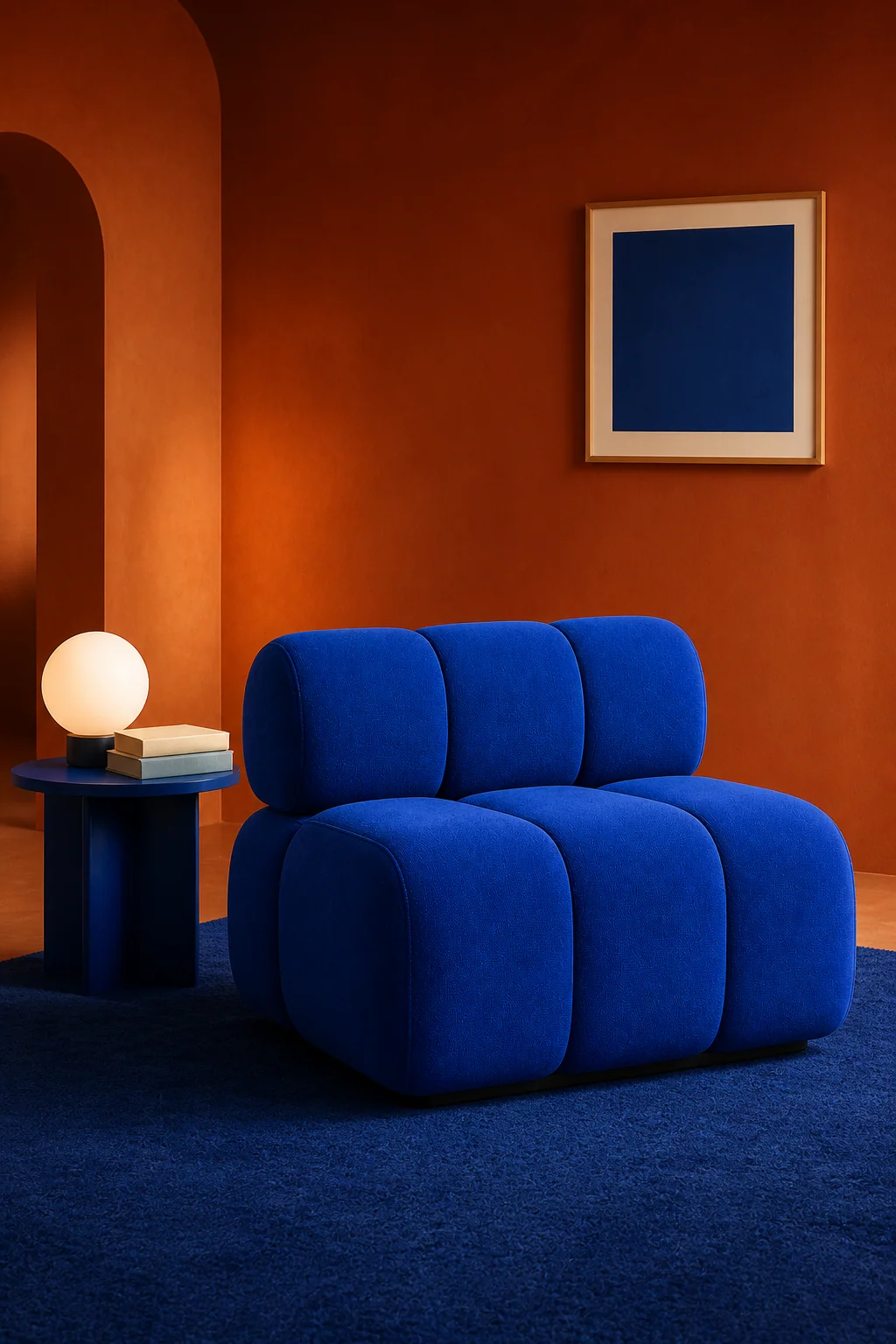
The orange walls contrast with the blue chair. The framed picture also occupies useful headline space: a reason to simplify the scene or change the text placement.
Keep the reference beside the result and inspect these points:
| Check | What to look for |
|---|---|
| Product identity | Changes to shape, color, label text, seams, materials, or included parts |
| Composition | Enough room for a headline without covering a key product detail |
| Background | Props that distract from the product or imply accessories are included |
| Lighting | Shadows and highlights that make the product sit naturally in the scene |
If you explore another direction, change one major variable at a time, such as the setting or lighting. Keeping the alternatives on the same canvas makes it easier to explain why one works better.
For a crowded background, a follow-up request could be:
Use the selected scene as a reference. Simplify the upper background by removing
the framed wall art and leaving a quiet area for a headline. Keep the chair's
appearance and its position consistent with the product reference. Add no text.
Review the product again after every generated revision. A request to change only the background can still affect other details.
4. Add the headline as editable text
Use the Text tool to add your message to the canvas. Keep it separate from the image so you can change the wording, size, color, and position without requesting another generated scene.
For the chair example, a compact message could be:
- Headline: Form meets comfort.
- Supporting line: A softer seat for everyday spaces.
- Call to action: Explore the collection.
This is example copy, not a claim about a real product. Use wording that accurately describes what you sell. Only include prices, discounts, or deadlines that are current and supported by your offer.
Start with the headline. Place it in the quiet area you planned, then add supporting copy only if the layout needs it. Review the composition at roughly the size someone will see it on a phone. If the text becomes hard to read, shorten it or reduce the number of competing elements.
Adding text to the canvas does not make lettering already embedded in an image editable. If a generated background contains unwanted lettering, revise the image before building your final text layout.
5. Prepare the canvas for export
Use Studio’s Export action to download a PNG of the composition. The canvas export includes visible canvas content, so check whether your reference images and unused alternatives are also in the export area.
If you have built an exploration board, make a copy through Project center → Duplicate current project. Keep the working board in the original, and prepare the copy with only the intended final composition visible. This lets you preserve your references and alternatives while preparing a clean deliverable.
Open the downloaded PNG and check:
- The file contains the intended ad rather than the full exploration board.
- The headline is readable and does not cover an important product detail.
- The product still matches the original well enough to represent it accurately.
- The image dimensions and file format match the destination’s requirements.
An aspect ratio is a shape, not a guarantee of a particular exported pixel size. Check the downloaded file’s actual dimensions before uploading it to an ad platform or storefront.
Common problems and what to try
The product has changed. Compare the output with the original at a useful zoom level. If labels, proportions, or materials are wrong, revise the result or use the original product photo in your final composition. Do not rely on attractive lighting to hide a mismatch.
There is nowhere to put the headline. Ask for a simpler background and a specific quiet area. Alternatively, shorten the message and adjust the layout around space that already exists.
The design looks crowded. Reduce decorative props and secondary copy. Keep one product and one main message easy to identify.
The export includes the reference board. Prepare a dedicated final composition in a duplicate project, then export and inspect the file again.
Questions before you create your first ad
Can I start with a phone photo?
Yes. What matters is whether the product is clear enough to use as a reference. Avoid blur, heavy shadows over important details, and angles that hide the features you need to show.
Will the AI preserve my product exactly?
Do not assume it will. Check every output against your reference, especially text, packaging, fine details, and proportions. For a listing that needs exact product representation, use the original photo wherever a generated result would misrepresent the item.
Can I change the headline without generating another image?
Yes, when you added the headline as a separate canvas text object. Text that is already part of a flattened image needs a different editing approach.
How many credits does this workflow use?
The total depends on your settings and how many generation attempts you make. Read the quote displayed in Studio before each submission and check the current pricing page. The examples in this article do not establish a fixed cost or completion time.
Continue with references, copy, and campaign versions
For a more specific art direction, follow the multiple-reference walkthrough. To work on the headline and offer independently from the imagery, use the editable-text guide.
When you are ready to explore alternatives, use the creative-variations workflow to give each version a clear purpose. Before delivery, check product consistency and prepare a clean PNG export.
Make your first product ad
Bring one clear product photo, choose a setting, and write one short headline. Start with a single visual direction, review the product carefully, and build your message as editable text on the canvas.
Open CubbieAI Studio, upload your own product photo, and adapt the prompt above to your next campaign.