
To create useful product ad variations, start with a base design and decide what each version is meant to explore. You might compare a bright room with a darker interior, or a short headline with a more descriptive one. Keep the other decisions as consistent as you can so the differences are easier to evaluate.
In CubbieAI, you can use the canvas to compare images, add your own text, and keep separate working projects. This guide describes a manual creative workflow. It does not assume an automatic batch generator or an ad-testing dashboard.
The chair images below are existing CubbieAI demonstration artwork. They illustrate different scene directions; they are not a controlled experiment or results from the sample prompts in this article.
Choose the question before making more images
“Create more versions” is a loose brief. A more useful question is: “Would this product be easier to present in a bright architectural room or an evening interior?”
Write a small variation plan before you generate:
| Version | Decision to explore | Keep as consistent as possible |
|---|---|---|
| A | Bright, neutral room | Product reference, viewing angle, intended layout |
| B | Darker, warm interior | Product reference, viewing angle, intended layout |
| C | Different headline on the selected scene | Background image, offer, text placement |
Versions A and B explore art direction. Version C explores copy after a scene has been chosen. Separating these decisions makes review more useful than changing the room, product angle, headline, and offer simultaneously.
This is a production plan, not proof that an ad will perform better. Performance requires a separate campaign test and actual results.
1. Establish the product and the base layout
Start with a clear reference photo of the product. Decide which details must remain recognizable: shape, color, construction, label, and finish. Use the same reference when requesting alternative scenes, and check which images are attached or selected before every request.
Reserve a place for the headline. If you intend to compare background directions, keep your planned copy and its approximate position the same across the initial designs.
The product-ad walkthrough covers the initial reference-to-layout process. For this exercise, you only need one product and a specific question about its presentation.
2. Request one scene direction at a time
Describe the first direction in a brief that you can revise without rewriting every instruction:
Use the selected cobalt-blue chair photo as the product reference.
Create one furniture campaign scene in a bright, warm-neutral interior.
Use soft daylight and a simple architectural background.
Place the chair in the lower half and reserve a quiet upper area for copy.
Keep the product's blue upholstery, padded sections, proportions, and base
consistent with the reference. Do not add lettering or additional products.
For the second direction, replace the environment instructions:
Use a darker interior with warm directional lighting and a wood background.
Keep the chair clearly visible, including its silhouette and upholstery.
Retain the planned lower-half product placement and quiet upper copy area.
These are suggested briefs. Reusing instructions does not lock every visual detail between generations. Review the visible quote before submitting each request, and compare each result with the original product image.
Here is a bright direction from the existing demonstration set:
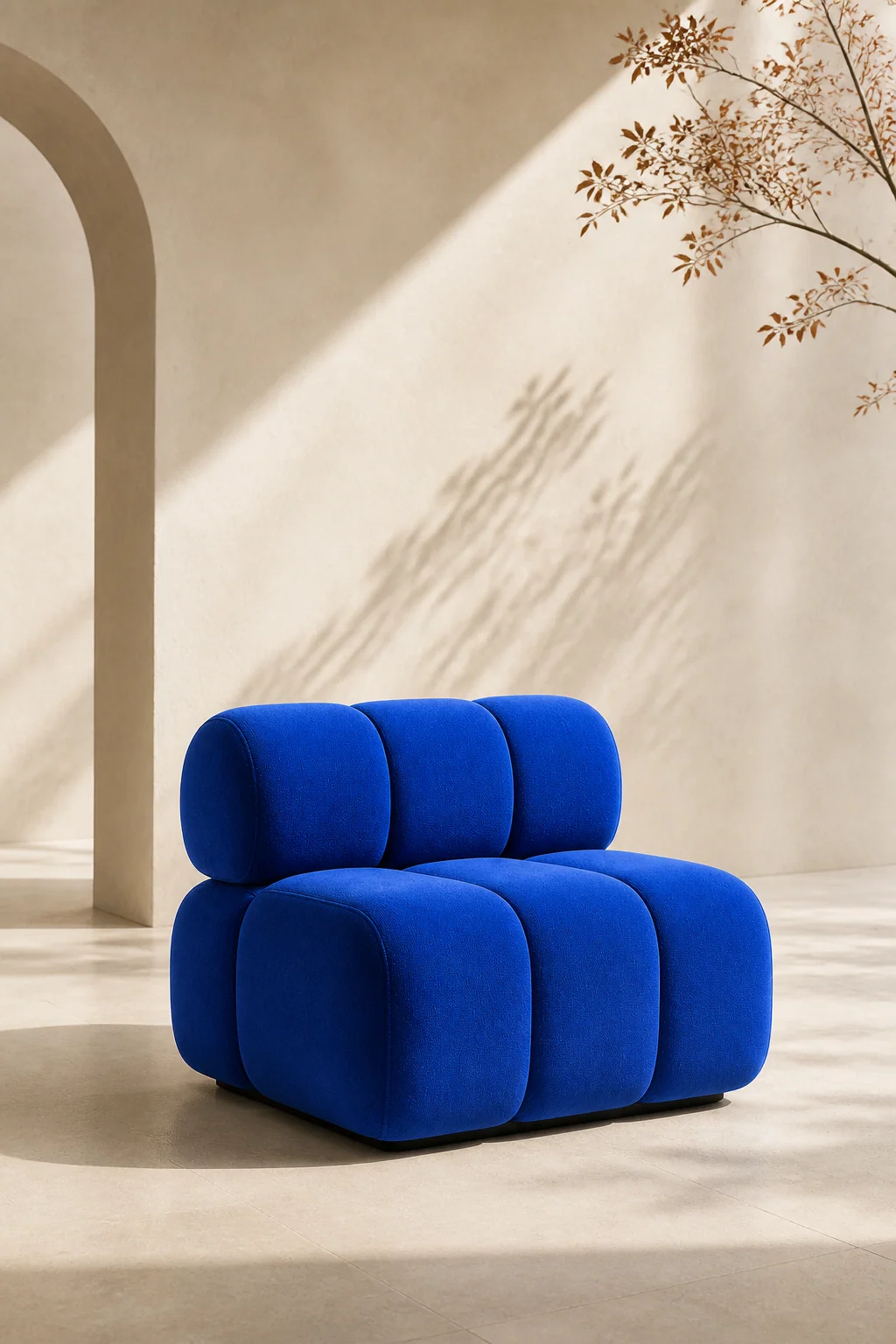
The pale wall offers a possible copy area, although the branch and its shadow still affect placement.
The darker direction makes different layout demands:
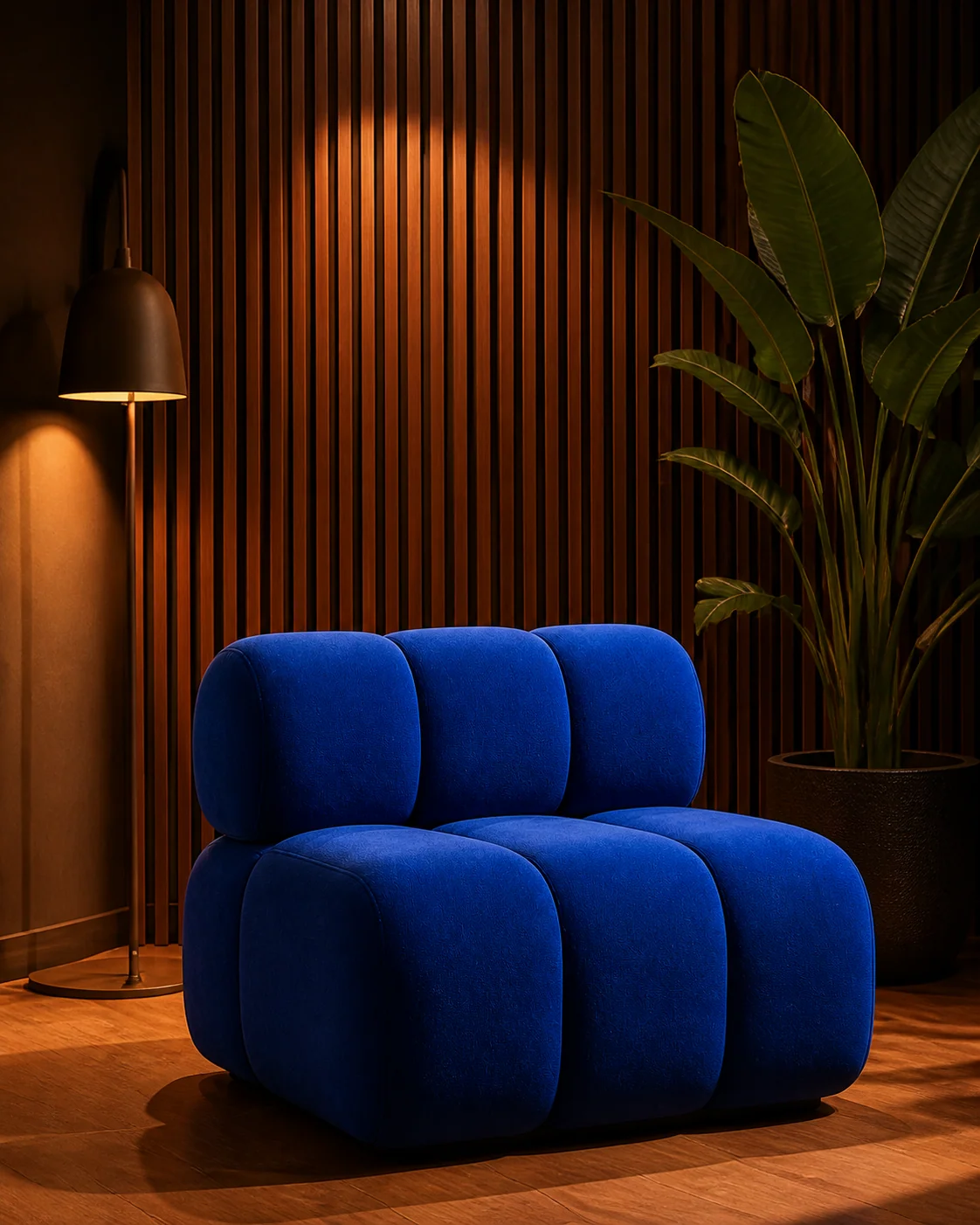
The wood, lamp, and plant create a busier setting. Check that both the product and the planned headline remain clear.
These examples also differ in framing and surrounding objects. They demonstrate art-direction choices, not a clean comparison where only lighting changed.
3. Compare the candidates before adding more
Place the candidates alongside the product reference on your review canvas. Inspect the product first, then the room, then the space available for the message.
Use a short review note for each candidate:
- Product: which details match, and which need correction?
- Composition: is the product prominent and fully understandable?
- Copy area: can the intended headline fit without covering the product?
- Next action: keep, revise one issue, or set aside?
A visually striking scene may still be unsuitable if the chair changes shape or disappears into the background. The product-consistency guide provides a more detailed review method.
Generate another candidate when it answers an unresolved question. If the problem is the wording of the headline, work on the text instead of requesting another background.
4. Keep copy variations editable
Once you choose a scene, use the Text tool for the headline and supporting information. Separate text objects let you revise the copy without generating the scene again.
For example, compare “Form meets comfort” with “Make room for a softer seat,” while keeping the chosen image and verified offer unchanged. Recheck line breaks and spacing after each wording change. A longer phrase may need a different arrangement.
Use Project center → Duplicate current project when you want an independent working copy. Confirm that the duplicate opens with its images and text available before editing it. The editable-text tutorial explains the difference between these objects and lettering embedded in an image.
5. Prepare one deliverable per version
Keep the reference board for review. Prepare a separate copy for each final layout, removing reference images, unused candidates, and notes from that delivery copy.
Export the PNG and inspect the actual file. A suggested filename such as blue-chair-bright-headline-a.png makes the creative choice easier to identify than final-final-2.png. Record which working project produced it so later copy changes can be made in the right place.
Check dimensions and composition for each destination. Different aspect ratios can require a new arrangement; this workflow does not promise automatic resizing into placement-ready files.
Questions about creative variations
Do I need to regenerate the image for every version?
No. If only an editable headline, price, or call to action changes, update those objects in a working copy. Generate another image when the scene itself needs to change.
Does a duplicated project produce a new AI image?
Treat duplication as a way to preserve and branch your work. Request a new generation separately when you want a different image.
Which variation will get more clicks?
The pictures alone cannot establish that. Choose candidates that accurately show the product and communicate clearly, then evaluate performance through your actual advertising workflow.
Open CubbieAI Studio and start with one product reference, two scene directions, and a clear comparison question.